
Excel Column Widths and Row Heights, Set Properly
By Mark Fulton · · 11 min read
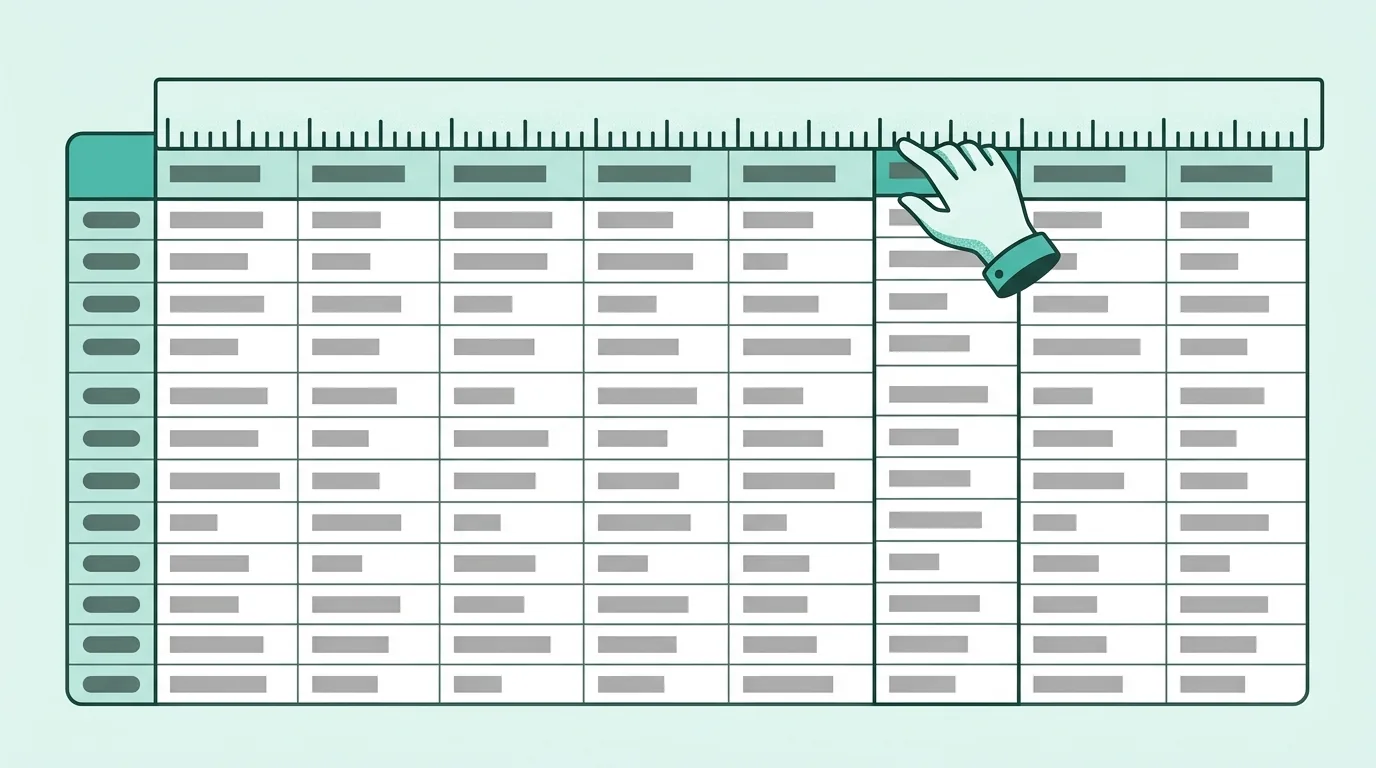
To AutoFit a column in Excel, select it and double-click the boundary on the right side of its header, or go to Home > Format > AutoFit Column Width. To set an exact width, use Home > Format > Column Width and type a number. Treat AutoFit as a first draft, not the answer. It sizes each column to its single longest cell, so one long note makes a column enormous, and a sheet full of AutoFit columns ends up with a different width for every column. The better finish is a small set of standard widths (I use three) applied by column type, long text capped and wrapped, and one row height set for the whole sheet.
That's the short version. The rest of this post is the reasoning, plus a width table I measured in Excel so you have real starting numbers instead of dragging borders until it looks about right.
What does AutoFit actually measure?
AutoFit looks at the contents of the column and picks the width that shows the widest one in full. Not the typical value. Not the header plus a little room. The widest cell, whatever it happens to be.
That width is expressed in Excel's own unit, which confuses almost everyone the first time. Microsoft's column width and row height reference defines column width as a character-based unit: the number of characters of the default font that fit in the cell. Row height, by contrast, is measured in points. So a width of 10 and a height of 10 are not the same kind of number at all.
The same page gives the limits. A column can be anywhere from 0 (hidden) to 255, with a default of 8.43. A row can be 0 (hidden) to 409 points, with a default of 15. Microsoft's Excel specifications and limits list the same ceilings: 255 characters of column width and 409 points of row height. Excel enforces them. When I tried to set a row to 500 points it refused.
One wrinkle worth knowing: because the unit is tied to the default font, the numbers you see depend on that font. Microsoft's developer documentation says one unit is the width of one character in the Normal style, and for proportional fonts it uses the width of the zero. On my Windows install, where the default is Aptos Narrow 11, a new blank workbook reports 8.11 rather than 8.43. Narrow fonts also mean text needs fewer width units than it has characters. A 25 character name AutoFit to 20.
Here's where to find the commands, since they differ by platform:
- Excel for Windows: Home > Cells > Format, then AutoFit Column Width, Column Width, AutoFit Row Height or Row Height. From the keyboard, press Alt and follow the KeyTips: Alt, H, O, I autofits the selected columns and Alt, H, O, W opens the width box.
- Excel for Mac: double-click the separator to fit, or Format menu > Column > Width for an exact number.
- Excel for the web: drag the header boundary, or double-click it to fit.
- Google Sheets: right-click the column letter, choose Resize column, then enter a width or pick Fit to data. Google's Sheets help on resizing rows and columns covers the row version too.
Why do nine different widths look worse than three?
Select a whole sheet, AutoFit everything, and look at the header row. Every column is a slightly different size. Nothing is wrong exactly, but the table looks unplanned, because it was. The widths are a side effect of whatever data happened to be in each column that day.
It gets worse with columns that belong together. I put two currency values into a blank workbook and AutoFit each one. $12,345.00 came out at 9.11. $1,234,567.89 came out at 11.56. Now picture a twelve month budget where March had one large invoice. March is wider than February, February is narrower than April, and the eye reads that as meaning something when it means nothing. Columns that hold the same kind of value should be the same width, so the reader compares the numbers, not the gaps between them.
Width also carries a lot of whitespace decisions for you. A table with three widths has a rhythm: narrow columns for codes and counts, medium for money and dates, wide for names and descriptions. A reader learns that rhythm in a second and scans faster for it. A table with nine widths never settles.
This is the same idea behind the column width rule in how to make an Excel spreadsheet look professional: consistency does more than decoration. Here's how to put numbers on it.
Which widths suit which column types?
I measured these in Excel on Windows with the default Aptos Narrow 11 font. For each example value I applied the number format, ran AutoFit on that one column, and recorded the width. For the number columns I then narrowed the column by one step past AutoFit to confirm it flips to #####. It did, every time.
The last two columns are my recommendation. They're a starting point, not a law, and a different font will move them.
| Column type | Example values | AutoFit width measured | Standard width to set | Roughly what that width holds |
|---|---|---|---|---|
| Short code or status | TX, Approved, INV-20931 |
2 to 8.44 | 10 | Codes, statuses and IDs of about ten characters, plus a short header |
| Count or percent | 12,345, 12.5% |
5.11 to 5.67 | 10 | Counts into six figures, percentages with one decimal. The header usually sets this width, not the values |
| Date | 9/15/2026, 2026-09-15, 15 Sep 2026 |
8.33 to 9.78 | 14 | Any of the common date formats, with room for a two word header |
| Currency | $12,345.00, $1,234,567.89 |
9.11 to 11.56 | 14 | Amounts with cents into the millions |
| Name or email | Alexandra Whitfield-Jones, a 30 character email address |
20 to 27.22 | 30 | Full names, most email addresses, short descriptions |
| Long note | Anything past about 30 characters | Whatever the longest note is | 30, with wrap on | A sentence or two per cell, across a few wrapped lines |
Notice that dates and currency land on the same standard. That's deliberate. Two widths that differ by a character or two look like a mistake, so I round them together. You end up with three widths for the whole sheet: 10, 14 and 30.
Two practical notes on the table. First, the width you need depends on the format as much as the value. 15 Sep 2026 needs more room than 9/15/2026, and a currency format with cents needs more than a plain count. Set number formats before widths, or you'll size everything twice. The Excel number formatting guide covers the codes, including scaling large figures to thousands so a money column can stay narrow. Second, when a number column shows #####, the value is fine. The column is just too narrow for the formatted text, which is why the narrowing test above flips so abruptly.
How do you autofit to a selection instead of the column?
This is the trick that fixes the stray outlier problem, and it's barely documented.
Double-clicking a column boundary always fits the entire column. If row 1 holds a long report title, or someone typed a paragraph into row 400, the whole column follows it. The ribbon command behaves differently. If you select a block of cells rather than whole columns and then choose Home > Format > AutoFit Column Width (Alt, H, O, I), Excel sizes the columns to the cells you selected and ignores everything else in them.
I tested it to be sure. In a blank workbook I put a 71 character sentence in A1 and two short values in A2 and A3. AutoFit on the whole column gave a width of 52.56. Selecting only A2:A3 and running the ribbon's AutoFit Column Width gave 9.44. Same column, same data, a width that fits the actual table instead of the title sitting above it.
The routine I use on any sheet with a title block or a notes row:
- Click the first header cell, then Ctrl+Shift+End to select the table down to the last used cell (trim the selection back if a stray note sits beyond the table).
- Alt, H, O, I to autofit to that selection.
- Look at the result, then round each column to the standard width for its type.
Step 3 is the one people skip. AutoFit to selection gives you the honest minimum. The standard widths give you the finished look.
When should text wrap instead of the column widening?
When the column would need to be wider than your widest standard width. For me that line is 30. Past it, widening the column costs the whole table: every other column gets pushed right, and the reader loses the row as their eye travels across the gap.
Wrapping keeps the column fixed and lets the row grow instead. Select the column, turn on Home > Wrap Text, then fit the row heights with Home > Format > AutoFit Row Height. When I set a column to 30 and typed a 104 character delivery note into it, the row grew from 15 to 45.25 points, three lines, and the table stayed the same width.
Three things break wrapping in practice:
- A manually set row height. Once you've set a row to a specific height, wrapped text that needs more room is simply cut off. Run AutoFit Row Height again after editing.
- Merged cells. Wrapped text inside a merged range doesn't autofit its row. If a layout depends on merges, there's usually a better alternative to merged cells.
- Wrapping the wrong column. Wrap notes and descriptions. Don't wrap names, codes or numbers. A number that breaks across two lines is harder to read than one that shows
#####.
Top-align wrapped rows. If a note is three lines tall and the rest of the row is centered vertically, the short cells float in the middle and the row reads as three rows.
What row height should a data sheet use?
For the body of a data sheet, Excel's default is a good height. The default is 15 points, and it's tuned to the default font. The problem is rarely the default. It's a sheet where somebody dragged rows 4, 12 and 30 to different heights and nobody reset them.
So set it once, for everything. Click Select All (the triangle at the top left of the grid), then Home > Format > Row Height and type the value. Or double-click any row boundary with the whole sheet selected to autofit every row at once. Then make only two deliberate exceptions: the header row and the totals row, which can be a little taller so they read as structure rather than data. Rows with wrapped notes are the only ones that should end up taller than the rest, and AutoFit Row Height handles those.
What does SuperSheet do to widths and heights?
Here's exactly what the formatter's "Size columns to fit" step does, because it's built around the outlier problem above.
It measures each column's header and its longest value, adds two characters of padding (four for currency and date columns, since their formatted text runs wider than the raw value), and then clamps the result. No column goes narrower than 10. No column goes wider than 34. A column whose content would need more than 34 stops there and wraps, and that wrap setting is written into the downloaded file with the text aligned to the top of the cell, so the download matches the preview. One stray paragraph can't drag a column across the screen.
For rows, the header and totals rows are set to 24 points and the title band to 30. Body rows are left at Excel's default, so your data keeps its normal height. Like every step in the plan, sizing can be switched off before you apply anything, and if you want a column at a particular width afterwards you can ask the chat rail for it.
Widths are set from the content the formatter reads, not the longest outlier. See the difference on your own file: drop an .xlsx or .csv on the Excel formatter and compare its widths with what AutoFit gave you. It runs in your browser, and the free tier is complete.
Frequently asked questions
How do I set the same width for several columns?
Select all of them first. Click the first column letter, then Ctrl+click or Shift+click the rest. Then choose Home > Format > Column Width, type the number and press OK. Every selected column takes that width. You can also drag the boundary of any one selected column and the others follow. To copy a width from a column you've already sized, copy a cell in it, right-click a cell in the target column, and use Paste Special > Keep Source Column Widths.
Why is AutoFit making one column enormous?
Because one cell in that column is long. AutoFit fits the widest cell, and it doesn't care whether that cell is a title, a note, a pasted URL or a cell with trailing spaces. Find it (a helper column with =LEN(A2) sorted largest first will surface it, or just scroll), then either select only the table cells and autofit to that selection, or set the column to a fixed width and wrap the long text. A column that suddenly doubles in width is also a good hint that something invisible, like trailing spaces, is sitting in a cell.
What is Excel's column width unit?
A character-based unit: the number of characters of the default font that fit in the cell. In the Normal style that's measured using the width of the zero character. Row height is different and uses points. Column widths run from 0 to 255 with a default of 8.43, and row heights from 0 to 409 points with a default of 15. If you want to work in inches or centimeters, switch to Page Layout view, where Excel shows widths and heights in ruler units instead.
Do column widths survive a Google Sheets round trip?
Roughly, not exactly. Excel measures width in characters of the default font and Google Sheets measures in pixels, so each conversion is an approximation, and a different default font on the other side shifts it further. Wrapped text is the most likely thing to move, because a cell that wraps at one width may wrap onto a different number of lines at the converted one. Check widths by eye after the trip and use Fit to data or AutoFit to tidy up. The details are in Excel vs Google Sheets formatting.